
Image Pixelator — Pixelate Images & Minecraft Art Online
Pixelate the entire image or any selected area — drag to adjust the region, set exact coordinates, and tune pixel size. Plan Minecraft pixel art blueprints or quick redactions with processing that stays local in your browser.
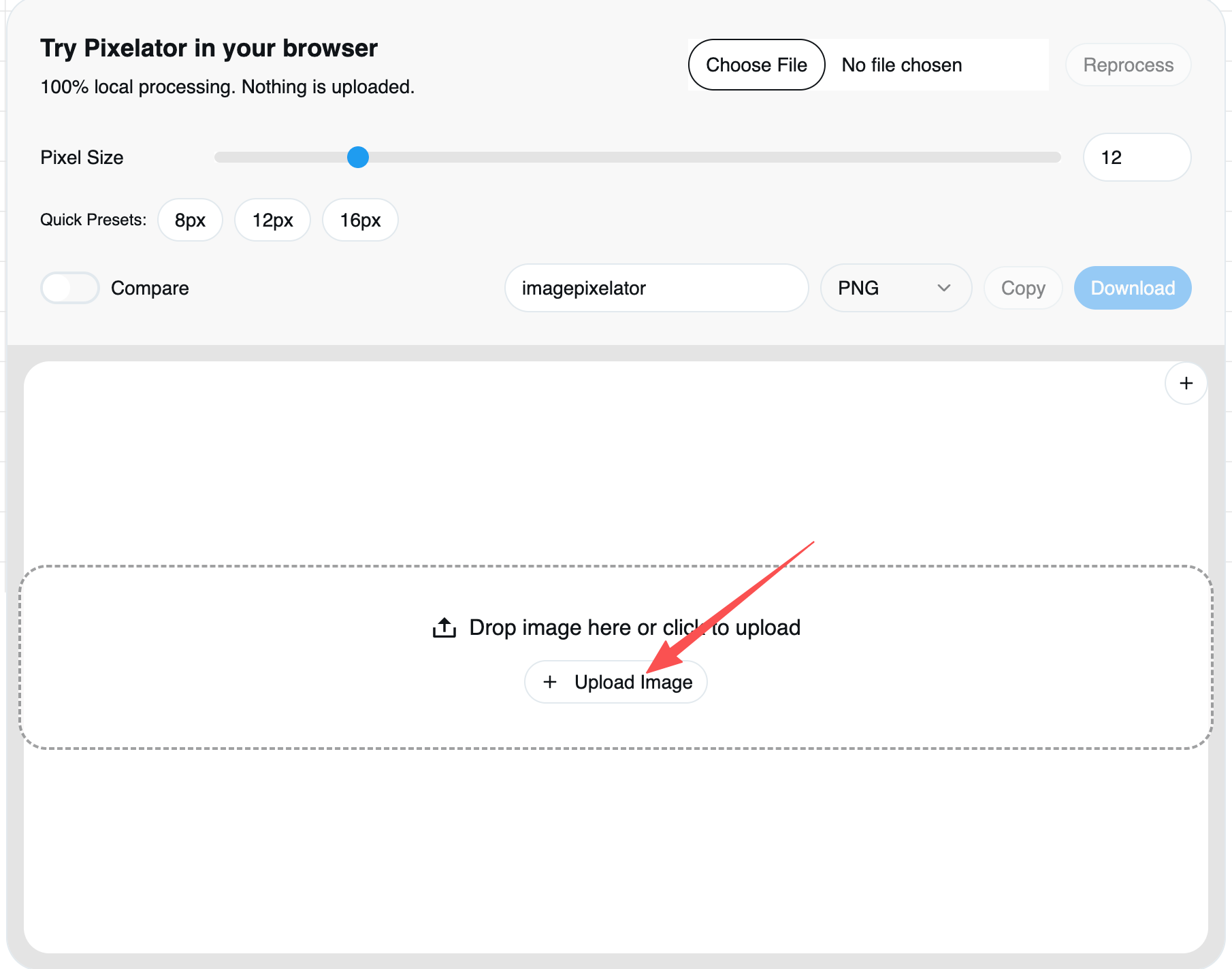
Try Pixelator in your browser
100% local processing. Nothing is uploaded.

What is Image Pixelator?
A fast, private, browser-based image pixelator and Minecraft pixel art generator. Pixelate the full image or any section, set exact coordinates and dimensions, and control pixel size for the perfect intensity — all local, no uploads.
- Pixelate Image OnlineOpen the tool, upload your photo or Minecraft reference, and get a pixelated image instantly in your browser.
- Redaction ToolsSelect regions to pixelate, blur, or add a solid mask. Perfect for hiding sensitive info.
- Pixel Art GeneratorTurn any photo into crisp pixel art or Minecraft-ready layouts with adjustable pixel size and styles.
Why Choose Our Pixelator
Pixelate images and prep Minecraft pixel art online with speed, privacy, and professional export quality.


How to Pixelate an Image
Learn how to pixelate an image online with our image pixelator.
Key Features of the Image Pixelator
Everything you need to pixelate an image online — fast and private.
Pixelate Images Online
Pixelate any image directly in your browser.
Selective Pixelation
Drag-select any region; type exact X/Y/Width/Height if needed.
Pixel Art Styles
Generate crisp pixel art with adjustable block size and styles.
Adjustable Intensity
Control Pixel Size to fine‑tune mosaic strength.
Export & Copy
Download PNG/JPEG/WebP (EXIF removed) or copy to clipboard.
Private by Design
No uploads. All processing stays on your device.
Pixelation Tips
Three quick tips for cleaner, safer pixelation results.
Tune pixel size first
Start small to keep detail, then increase for stronger masking.
Target sensitive zones
Use the selection tool to pixelate or blur only what needs hiding.
Export clean files
PNG/WebP exports automatically remove EXIF metadata.
Tutorial Entry: Learn to Pixelate
Follow the step-by-step guide for redaction and pixel art workflows.
Image Pixelator — FAQs
Have another question? Contact us via email.
How do I pixelate an image?
Click ‘Pixelate Image Online’, upload your image, drag to select a region or enter exact coordinates in Advanced, set Pixel Size, then export.
Is this pixelator private?
Yes. It’s 100% browser-based — nothing is uploaded. Your pixelated image is generated locally.
What formats can I export?
PNG, JPEG, and WebP. EXIF metadata is removed automatically on export, and you can copy to clipboard.
Can I pixelate only part of an image?
Yes. Use Redaction to drag-select a region, then apply Pixelate, Blur, or Solid Mask.
How do I adjust intensity?
Increase Pixel Size for stronger mosaic; decrease for milder effect.
Does it work on mobile?
Yes, it runs in modern mobile browsers. Large images may be slower on low-end devices.